Character spacing in cell with formula?

I’m getting a feeling of deja vu and hope I’m missing something, but right now I seriously can’t find character spacing anywhere in calc for a cell which has a formula.

Not in the regular menus, and I can’t see it when creating a new style either.

I’m using 26.2.42.2. Can anyone please point out what I’m missing?

Surely Libreoffice Calc has a kerning setting hiding somewhere…

I don’t know whether it would help, but there are a couple of places to test, either by themselves or combined:

  • Format > Cell > Font > (Language) Features > Horizontal Kerning.

  • Format > Text > Half-width / Full…

There is also the Alignment, such as Distributed / Justified…

This is for Asian characters.

I just tested the “Full” alternative with a Western text in the cell (no formula though). There is some effect on the displayed text. I have not tested further than that.

Calc does not support (simply: has no) character styles.
Parts of the literal content of a cell can only be formatted differently by “hard” formatting. No working formula can show character formats other than the cell style defines.
Insertion of space characters may be accepted depending on the syntactical position.

Oof. I still find that limitation hard to fathom in 2026.

So now, instead of having one cell with text kerned the way I want, I now need 6 (properly resized) cells plus a storage cell (with a style that hides it from printing), and then work out a formula to extract numbers 1-6 from the storage cell into the proper place in all six spaced out cells… :tired_face:

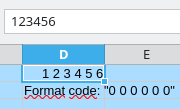
Not exactly “kerned”, but as a workaround you can add spaces in the cell formatting.
image
There are many different space types that you can use.

2 Likes

Do you know a spreasheet software which suits you better?
Out of interest: If so, tell me.
I surely would not want to use it, and I can hardly imagine a reasonable use-case.

See Bug 159047 - Calc: make possible Font spacing of formula results

Maybe switch to mono-spaced font