
When applying subtotals function to data in which some columns deleted and some added, the function does not select all intended columns even when intended columns are manually highlighted; it defaults to some unintended selection. The only workaround is to copy out all data and paste into new worksheet. What is this?
Select a contiguous range and that is all you need to do.
If you want to include non-contiguous ranges then you must select one range, insert a ; select the next range, insert a ; and so on, e.g. =SUBTOTAL(9;B:B;D:D;H:H)
.
Depending on what you want to achieve, a Pivot Table might work better
I have selected contiguous columns but when I select the subtotals function, it defaults to original columns and doesn’t recognize the added column. There are no blank columns in between, no merged cells just straight data in all contiguous columns. Please see pic. Left side shows all columns selected. Right shows only 3 of 4 selected after selecting subtotals. The only way I can get it to work is to copy out all the columns and paste into a new sheet.

Use a pivot table instead of subtotals. A pivot table leaves your source data untouched.
2 Likes
I see that you meant the Subtotals wizard, not function. A pivot table is a better choice.
.
I still couldn’t get the Subtotals wizard to not include adjoining columns inside the range or outside the range, by deleting columns and adding them.
Unclear what you mean by “I still couldn’t get the Subtotals wizard to not include adjoining columns inside the range or outside the range, by deleting columns and adding them.” But if you mean you were able to get it to work locally on your end (to select all adjoining columns) then obviously it’s something with my version (Version: 26.2.6.3 (X86_64)
Build ID: 8221e31b3ac356a1623c672912a3d2b492f7e3d1
CPU threads: 12; OS: Windows 11 X86_64 (build 26300); UI render: Skia/Raster; VCL: win
Locale: en-US (en_US); UI: en-US
Calc: threaded)
or local to my machine. Any thoughts? Otherwise, I’ll copy and paste. Thank you for prompt replies 
Sorry about using a double negative but I wanted to emphasise that it always included all the columns in the selection.
Maybe the file is slightly corrupted.
You could check if your user profile is the issue, click Help > Restart in Safe Mode > Continue in Safe Mode. Open your file and see if it works as expected.
.
Here is your screenshot as a spreadsheet but with a pivot table for the data. You can re-arrange the data as you like by right clicking it and selecting Properties. I have grouped the dates by Month and by Year.
Subtotals138804withPivotTable.ods (18.2 KB)
1 Like
No worries. I restarted in safe mode setting user profile to reset entire user profile. Still de-selects the last added column when all highlighted. It’s not a big deal. I can get by. It just aggravates me when something doesn’t work as intended and I feel compelled to find an answer. But, I’ll let it go. Thank you for your help
Testing while in safe mode was a better option; if it made no difference then there was no point in resetting the user profile.
Does Sutotals work in my sample? If it does then probably your file has some corruption, or there is some setting that is not default in your version of LibreOffice.
Subtotals did work in your sample. I copied my original sheet out to a new workbook. The same phenomenon occurs; highlighted all adjacent columns, selected subtotals from “Data”, de-selects last column. I attached that workbook so that you may see if the same occurs on your end.
Untitled01.ods (18.5 KB)
Your sample does indeed deselect the 5th row. I suspect some sort of corruption, if I copy A1:E36 to a new sheet, or even just to say H1 and then delete the previous columns, then the problem is gone.
I agree. I’m just wondering what the corruption is and where. But again, it’s not critical. I can work around. Just a curious phenomenon.
This file was edited only with Calc?
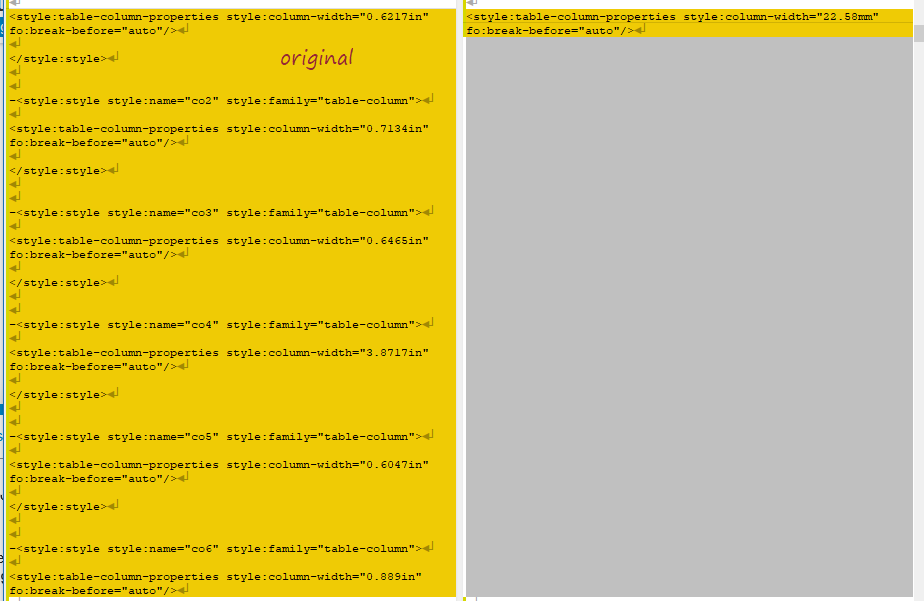
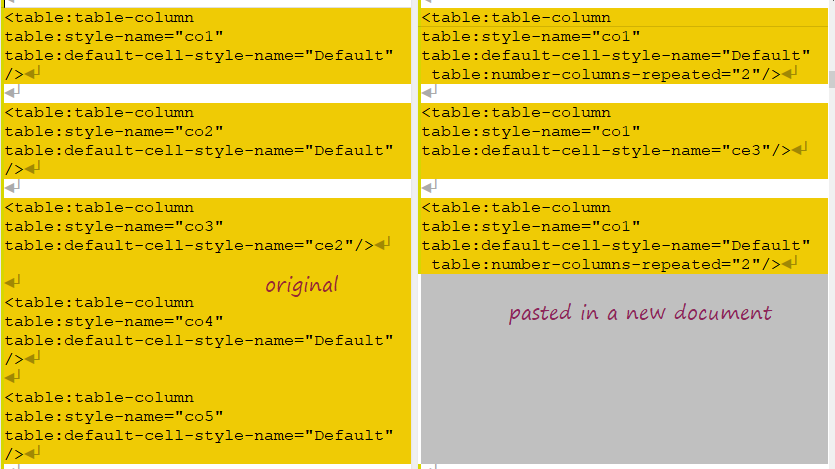
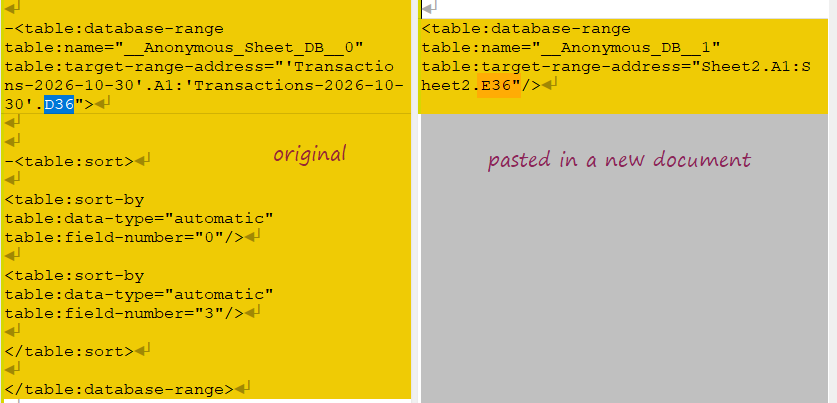
There are three main differences between the original and a copy. I think that the target-range-address value could be the problem, but not sure how it got it there:
1 Like
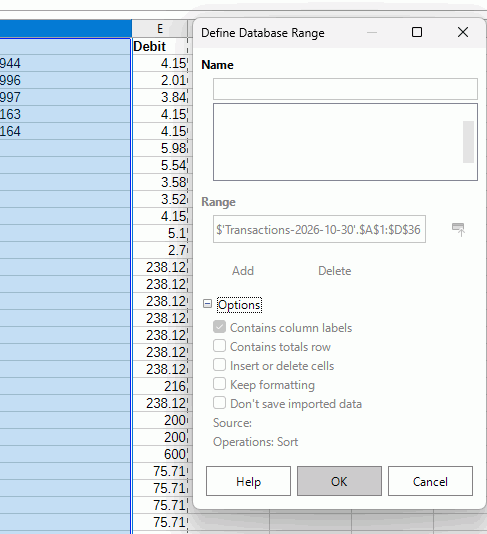
You are right, I think the cells were part of a database range. With nothing selected, if I click Data > Define Range then cells A1:D36 get automatically selected.
I think the damage was done by deleting and adding to an existing database range when Insert or delete cells was unticked (seems to be ticked by default).
1 Like
Yes, only edited with calc
It is complicated, far too complicated. “Insert/delete” used to be off by default. The whole concept of database ranges makes no sense with this default. IMHO, the option should not even exist. I filed a bug report which changed this wrong default. However, the change has been implemented incompletely. The value is off by default for a new database range linked to a data source.
2 Likes