To insert .csvs into Calc

Collecting database data on spreadsheets is pointless if your references do not update. You append 12 new rows of data to your list and all formulas, charts etc. still refer to A2:A11. This becomes a maintenance hell as you add more data, more evaluation and more charts.
The macro I suggested does the following:

  • Open a file in the specified directory.
  • Determine the row count on the specified sheet minus any specified header rows.
  • Turn on “Expand references…” if it was turned off.
  • Insert the necessary rows below the current region around a named cell “Target”.
  • Write data into the inserted range.
  • Open the next file, if any.
  • Turn off "Expand references… " if it was off when calling the macro.

You don’t need that macro for mass import if you follow the above simple steps, namely paste-special with option “insert rows” and global option “expand references…”

IMHO, Calc can not do that. Excel has a database tool named “Power Query”.

The user above simply used Sheet > External Links and browsed to the file. I tried it. It inserts the file where the cursor is located. If you want the new data at the top, click row 2, Sheet > External Links, and delete the extra titles (row 2).

That example works, because the new data is added to the csv outside Calc. Then the contents are refreshed. So the user has a automation in Calc, but still needs to do manual updates or scripts to do move his new “StaatementYearMonth.csv” into the linked csv. And here somebody needs to configure, how many rows to skip etc.

When I download banking activity, I usually download to a separate text/csv file in a dated file under a directory called Statements. I haven’t looked more closely at this time, but yes, the process to add the new data to the existing spreadsheet is manual. But it’s pretty easy. I’m not sure what you mean by “rows to skip”. LibreOffice Calc inserts the rows, expanding the table as needed, as long as I click on the row where I want the insertion to occur. Please see page 410 | Calc Guide 25.2 in the Calc Guide, Using the External Data dialog. Last, the link needs to be removed, by Edit > Links to External Files…. Two manual steps once a month.

Maybe a feature request to add an option to Remove the link right on the External Data dialog, or just some text saying To edit or remove any external link use the Edit menu.

No, and the “how to do it” is already described by others, so I try to show, where the problems are.
.
What we can do is linking to external data and refresh or defining a datasource, in this case a “virtual” database, where all csv-files in a folder are tables of the database and can be queried and refreshed. (You choose the folder as “database” for this.)
.
Above is a good solution, if you regularly get a full list of ISBN-codes or other stuff as csv. The problem arises when we have something like monthly increments to add:

We may have imported 2025-01.csv and Calc may even remember the settings, but now we have a new name 2025-02.csv, so Calc will ask every time for settings on import.
Also (while this example is obvious) we don’t know anything on the filenames (Jan25, Feb25, Mrz25 is also possible), so scripting or at least some config is necessary.
.
Next problem is: Can we avoid to import a file more than once, so a script should move a .csv to a subfolder “imported” after processing .
.
A solution or work-around would be to convert the monthly files in one file to import. But instead of solving all this in Calc I would suggest to do the scripting outside of Calc and combine the csv-files on command-line to a single source. On Linux and other OS with shell-scripts we can use tail, for Windows I’m used to Cygwin but other solutions are possible: https://stackoverflow.com/questions/53608556/remove-the-first-line-of-a-csv-file-under-windows-using-cmd-command
.
The combined file can then be used as datasource as already mentioned above. So my suggestion would be: Forget about the monthly import in Calc, but update an external .csv or directly import from csv to a database. I use sometimes the import from csv in sqlite.
.
To create a combined datasource there are also other tools available like for example csvstack
3. Power tools - csvkit 2.2.0 documentation

If one prefers a script inside LibreOffice I usually suggest to start here:
https://forum.openoffice.org/en/forum/viewtopic.php?f=21&t=77069

1 Like

Yes, this should be the practical solution within LO’s scope.
But (header = data,historico,valor pre inserted)

tail -n +2 Stmt*.csv | grep -v '^==>' >> Statements.csv

does this
AppendBug

tail(1) - Linux manual page :

  -q, --quiet, --silent
         never output headers giving file names

Header data,historico,valor is pre-inserted in Statements.csv
 
So insertion command must be

tail -n +2 -q  Stmt*.csv | grep -v '^==>' >> Statements.csv

:grey_question:

tail -n +2 -q  Stmt*.csv  >> Statements.csv

or probably too :

grep -v 'data,historico,valor'  Stmt*.csv  >> Statements.csv

@fpy
:+1:

tail -n +2 -q Stmt*.csv | grep -v '^==>' >> Statements.csv

does it!

But then in Base (a DB), not in Calc?
Because of course one can open the .csv in Calc, but after saving it is static, right?

The grep is no longer necessary ith tail working in quiet mode:
tail -n +2 -q Stmt*.csv >> Statements.csv

If the merged files are structured equally, you get a valid csv which can be used with any application able to process valid csv.

:+1:

Of course, but as question was about Calc…
No way to really link one “Statements.csv” montly appended to Calc, right?

Here is an approach that has already been proposed by colleagues.
You have an .ods file consisting of several sheets.
One sheet (let’s call it “Data”) contains bank statement data (from a Statements.csv file), while the other sheets are designed to display this data (for example, using formulas or pivot tables).
The most convenient way to fill the “Data” sheet in Calc (in my opinion) is to use Menu / Sheet / External Links… (see also messages above)
In the URL, specify the path to the file Statements.csv, Tables/Ranges: CSV_all.
You can choose periodic updates and update Data upon user request. In the latter case, use Menu / Edit / Edit Links… / Update.

You can create a sheet link with menu:Sheet>“Insert sheet from file…” with “Link” option. But this will rewrite the entire sheet when the link is refreshed. No references will adjust automatically to the changing row set. You have to reference entire columns (A:A).

Database link, resizing, formattable:

  1. Create data source
  • File>New>Database…
  • Connect to existing database
  • Type: Text
  • Specify the directory of your text file(s) and the import parameters.
  • Register the database.
  • The resulting database is a read-only connection to the specified files within the same specified directory.
  • Save the database. Instead of this read-only text driver with many limitations, you may also use a true database with text table support.
  1. Link a table to a Calc range
  • Open your Calc file.
  • Drag the icon of the “Statements” table into your sheets.
  • Data>Define…
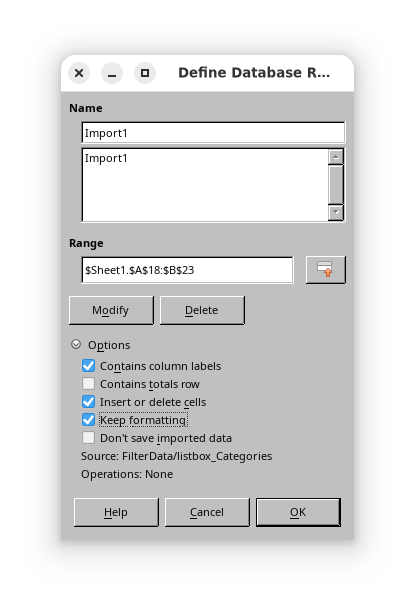
  • Select “Import1”, Options and check “Keep formatting”, “Insert/Remove cells”.
  • Now you have a named database range that grows and shrinks with the row count of the referenced database table (or query). Refresh with Data>Refresh
  1. Create a pivot table
  • Data>Pivot Tables>Create…
  • Create pivot from registered data source.

You can use Base to link it to Calc. After you created the datasource open a new Calc spreadsheet and drag the table from View->Datasources to A1 (or another place). Now you have a db-range and can refresh it from the menu (Date - > refresh range).
So, yes - thos uses Base, but you will not see it after the inital setup ( like mail-merge )
.
The other option to link and refresh via external links was also already mentioned (by @lodf2023 and in the thread linked by @Villeroy. How import csv file to calc - #4 by EarnestAl

It works just as well with an existing spreadsheet. But if you want the full advantages (adjusted references and persistent formatting):

“Insert/Delete” and “Keep formatting” are off by default which makes no sense.

1 Like

Good to know, but I wanted also the abillity of (simple) queries in Base. Quite nice to fit different csv-layouts in existing reports and tables.

Indeed: this does it fine. I think it’s the most direct practical solution within LO’s framework. There are the other apointed solutions, but demanding a step into DB.
 
Thanks very much for all of you that answered. It’s a very interesting point and may be useful to other people.
LinkTo_csv

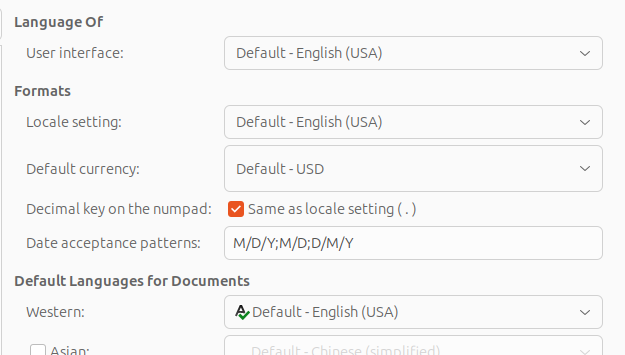
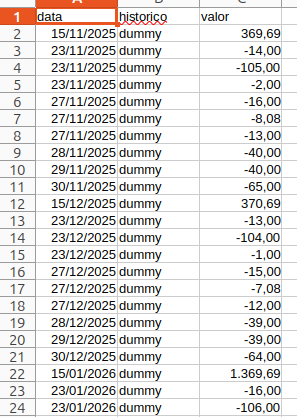
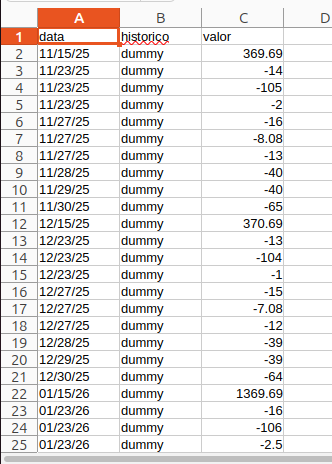
The screenshot reveals one of the shortcomings of the built-in text driver. Your column of US dates has text because your locale is not “English (USA)”.
SQL functions for file based database drivers do not include any SQL function for type conversions.

  • The SQL of a true database can convert entire columns easily.
  • You may switch the global office locale (Tools>Languages…) to English(USA) while working with this.
  • A more complex script would be able to convert US dates to ISO dates while merging the data into Statements.csv. I don’t know how to do this. sed or awk might be the right tools for this.
  • You may add a calculated column to your spreadsheet, something like:
    C2: =DATE(VALUE("20"&RIGHT($A2;2));VALUE(LEFT($A2;2));VALUE(MID($A2;4;2)))
    When you refresh the linked database range, the formulas will be filled down or removed as the range grows or shrinks (given that option “Insert/Remove cells” is checked).