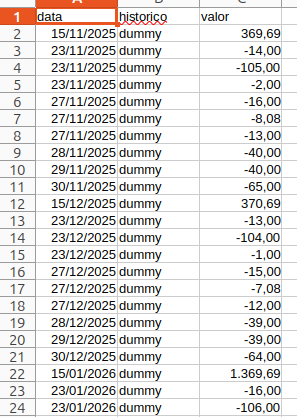
The grep is no longer necessary ith tail working in quiet mode:
tail -n +2 -q Stmt*.csv >> Statements.csv
If the merged files are structured equally, you get a valid csv which can be used with any application able to process valid csv.

The grep is no longer necessary ith tail working in quiet mode:
tail -n +2 -q Stmt*.csv >> Statements.csv
If the merged files are structured equally, you get a valid csv which can be used with any application able to process valid csv.

Of course, but as question was about Calc…
No way to really link one “Statements.csv” montly appended to Calc, right?
Here is an approach that has already been proposed by colleagues.
You have an .ods file consisting of several sheets.
One sheet (let’s call it “Data”) contains bank statement data (from a Statements.csv file), while the other sheets are designed to display this data (for example, using formulas or pivot tables).
The most convenient way to fill the “Data” sheet in Calc (in my opinion) is to use Menu / Sheet / External Links… (see also messages above)
In the URL, specify the path to the file Statements.csv, Tables/Ranges: CSV_all.
You can choose periodic updates and update Data upon user request. In the latter case, use Menu / Edit / Edit Links… / Update.
You can create a sheet link with menu:Sheet>“Insert sheet from file…” with “Link” option. But this will rewrite the entire sheet when the link is refreshed. No references will adjust automatically to the changing row set. You have to reference entire columns (A:A).
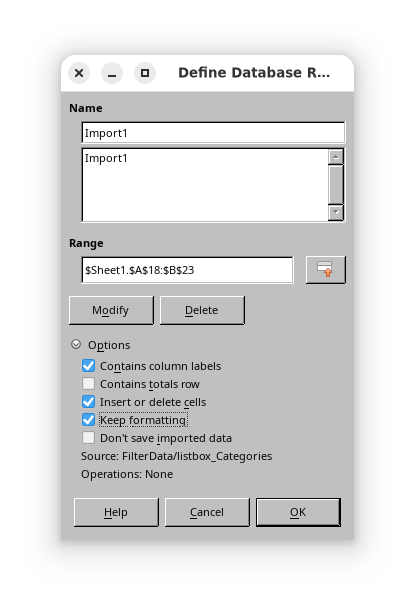
Database link, resizing, formattable:
You can use Base to link it to Calc. After you created the datasource open a new Calc spreadsheet and drag the table from View->Datasources to A1 (or another place). Now you have a db-range and can refresh it from the menu (Date - > refresh range).
So, yes - thos uses Base, but you will not see it after the inital setup ( like mail-merge )
.
The other option to link and refresh via external links was also already mentioned (by @lodf2023 and in the thread linked by @Villeroy. How import csv file to calc - #4 by EarnestAl
It works just as well with an existing spreadsheet. But if you want the full advantages (adjusted references and persistent formatting):
“Insert/Delete” and “Keep formatting” are off by default which makes no sense.
Good to know, but I wanted also the abillity of (simple) queries in Base. Quite nice to fit different csv-layouts in existing reports and tables.
Indeed: this does it fine. I think it’s the most direct practical solution within LO’s framework. There are the other apointed solutions, but demanding a step into DB.
Thanks very much for all of you that answered. It’s a very interesting point and may be useful to other people.
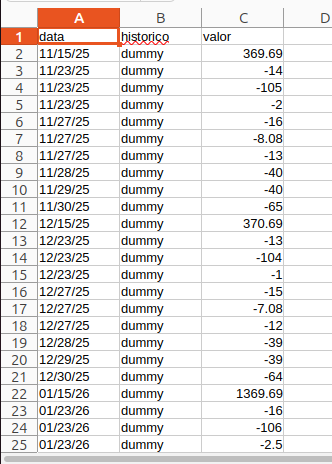
The screenshot reveals one of the shortcomings of the built-in text driver. Your column of US dates has text because your locale is not “English (USA)”.
SQL functions for file based database drivers do not include any SQL function for type conversions.
=DATE(VALUE("20"&RIGHT($A2;2));VALUE(LEFT($A2;2));VALUE(MID($A2;4;2)))Version: 24.2.7.2 (X86_64) / LibreOffice Community
Build ID: 420(Build:2)
CPU threads: 4; OS: Linux 6.8; UI render: default; VCL: gtk3
Locale: en-US (en_US.UTF-8); UI: en-US
Ubuntu package version: 4:24.2.7-0ubuntu0.24.04.4

I’m in Brazil but installed Ubuntu and Mint using the first option that shows up = English - US.
But this option only exists via DB?
In this option = External Links does it?
That’s not a matter of the locale, but of the choice per column in the import dialog.
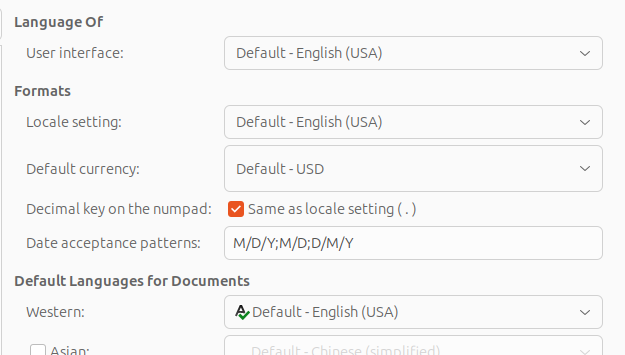
It is English (USA)
Date pattern D/M/Y I added a few minutes ago to try.
Very straightforward indeed.
Will see if sheet keeps our local format after the “monthly” refreshings. But as I understand, you said it will.