
[Ctrl+1]
Preferably, create a style with the format and apply it to those cells.
It is better not to modify the Default style, but to create a new one. In the sidebar, right-click on a style, select New, modify the numerical format you want, set the right border, and in the first tab, give it a name that is recognisable to you.
Styles (Spreadsheet)
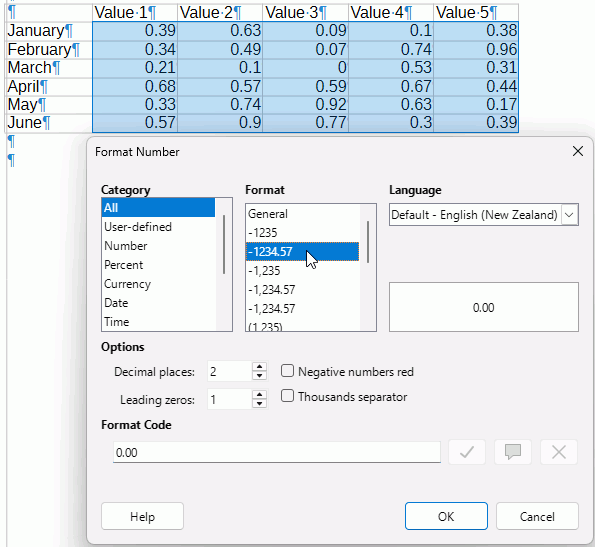
Yeah, the decimals should align. Pretty basic stuff. I note the tab ruler has it. No engineer or scientist would dream of looking at data without decimal alignment.
Engineers and scientists like the scientific data format. It is easier to align them.
1,23E+05
1,23E+01
Sometimes we do but often simple decimal alignment is preferred. Sheesh, the tab ruler offers it. This is a plain vanilla tab ruler table:
.
.
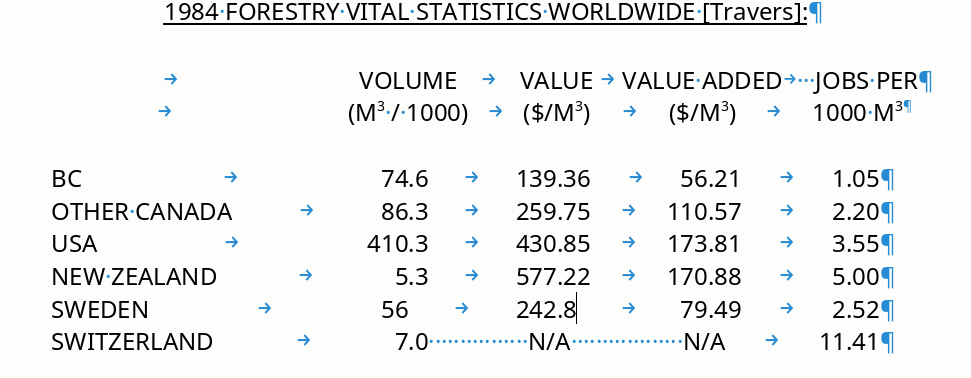
… I’d like to make it into a table if possible, OTOH using the tab ruler is perfectly satisfactory anyway so it’s not like I’m stuck or anything. BTW, I tried ‘right padding’ but the results were bizarre, the cells got taller and the numbers sorta wrapped inside the cell – couldn’t make any sense of it.
This is an interesting topic and I would also like to know how to do it correctly.
.
I found a helpful topic below:
.
.
The responder is the author of the book, To Tame a Writer, which is also available on the LibreOffice Books webpage.
.
They write on page 150:
.
I have had inconsistent results trying to implement this on a Writer Table, but I think I am close  Perhaps someone could explain the steps. Are the steps in the book still valid for versions 25.8 or 26?
.
Here is what I have tried:
.
-
Open Writer and create a 4x4 table.
-
Select the table, right click, and select Paragraph > Paragraph
-
Select the Alighnment tab and select Center.
-
Select the Tabs tab and select Type Decimal. This is where it gets fuzzy for me. The author says, it is not necessary to insert the tabulator.
I found that doc too! But it was over my head. If someone more experienced figures out how to do this, I’ll be happy to learn. I’d say it’s an omission – this should be added as a centering option ‘center on char’ or something, and you’d get to pick the char, which might not be a dot.
Select the cells in a column that need a decimal
Left click on the ruler to place tab stop
Right click to select Decimal
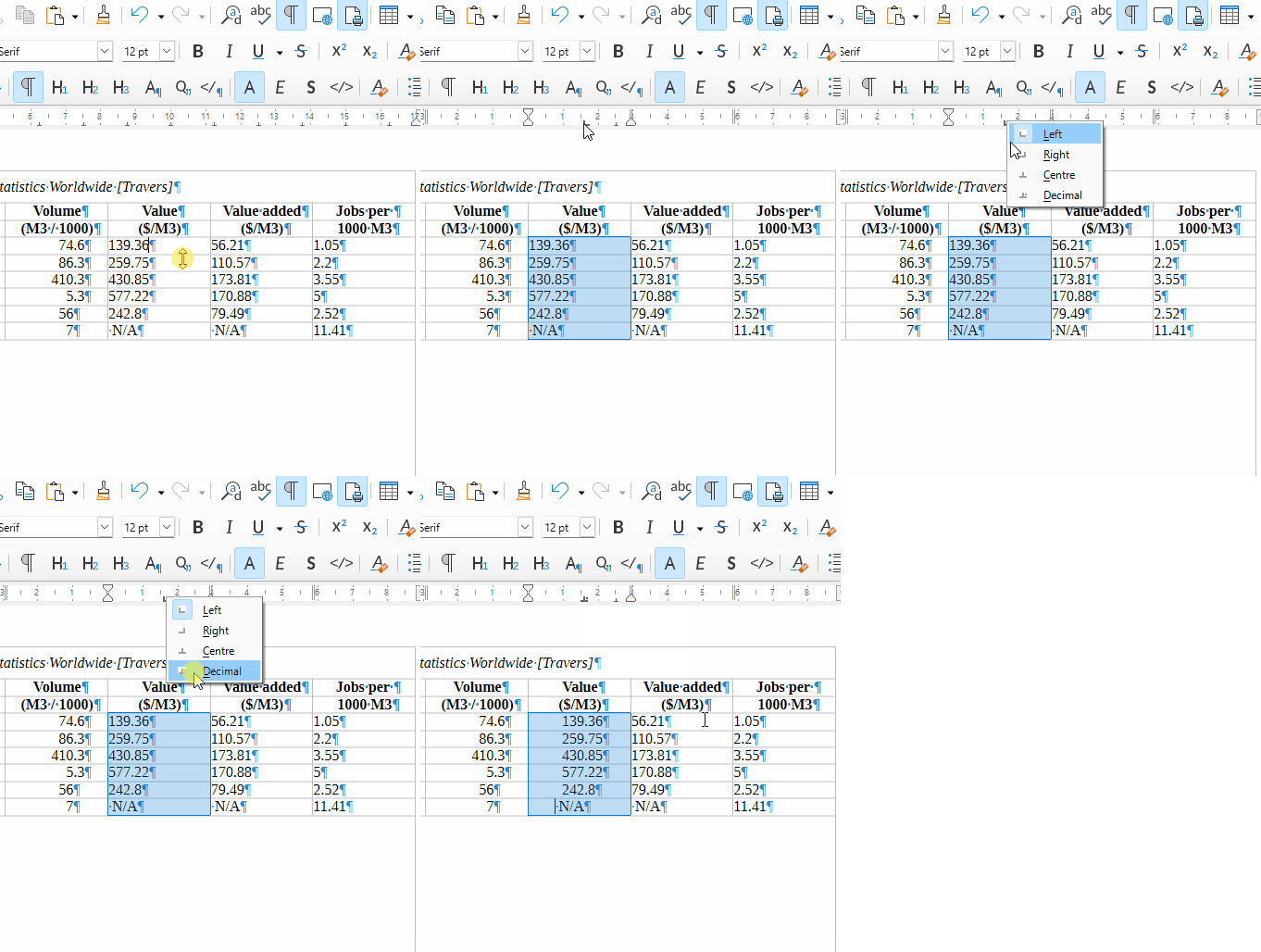
2 Likes
Ah! Use the ruler! Why didn’t somebody say that?
I was also able to get it to work by selecting the table (or desired columns), right clicking and selecting Paragraph > Paragraph. On the Tabs tab, select Type: Decimal and Position: .74" and New. All columns became positioned on the decimal.
.
I also tried it by creating a new Style from the Default Paragraph, added the tab, and then assigned the style to the table and it worked.
3 Likes
Got it by gum, but easiest with the ruler.
Grrrr … did one column but can’t do the second. Ruler is so faint, I can’t see what’s happening.
Make sure you have the second column selected.
That was my issue too.
.
At this time, using the dialog was easier. 
.
I noticed if I selected the entire table, right click > Paragragh > Paragraph, click the Tabs tab and then selected Type: Decimal, Position: .5, New. I only had to enter the Position once and it took care of all columns (cells). In fact, the New button was gray (disabled).
.
I could also select each required column individually and repeat the process.
.
In either case, each column (cell) had its’ own decimal tab marker on the Ruler and appeared when the cursor was on the column (cell) regardless of how it was originally set.
.
Whatever way you choose, be consistent with your selections and method.
.
For example, I noticed that if the decimal tab was first set by table or by column, and if for some reason a cell (some other range) was set later or the decimal tab was moved on the Ruler with a different selection, selecting the table or column now will look like no tab was set. Selecting the table or column again and resetting the decimal tab does fix it. But for awhile you might be scratch’n your head wondering why the decimal tab in the dialog is 0 when you know you set it
1 Like
upload.odt (16.0 KB)
Here’s my effort, I hope you can open it. I can get the first column fine, but not the second.
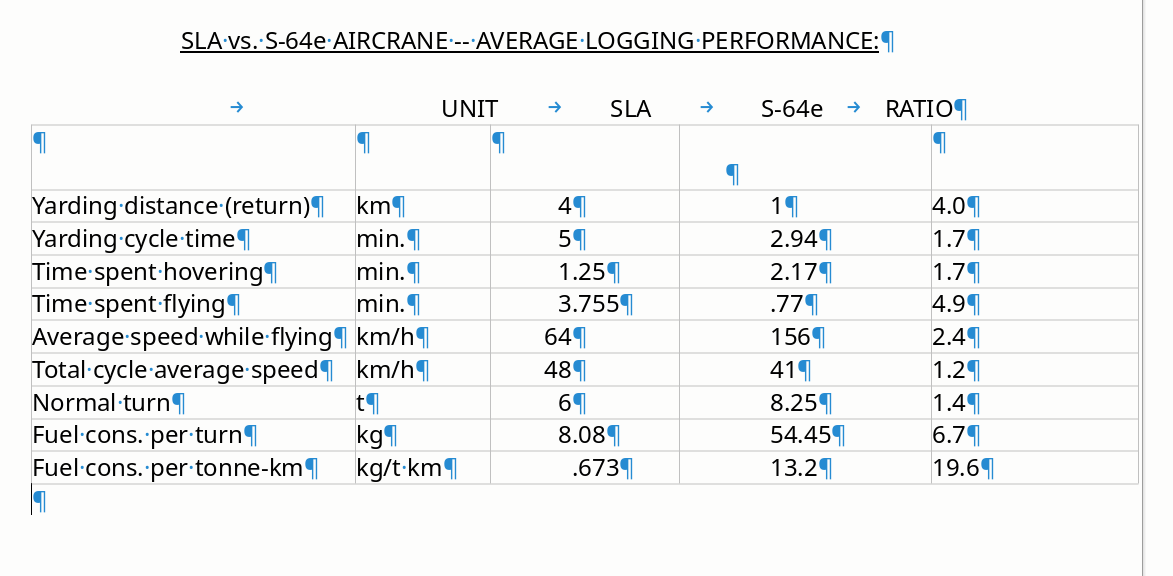
… first column of figures is just dandy. Others are set to ‘decimal’ via the dialogue but nothing changes.
Hot damn, I got it: block all relevant columns. KILL ALL DIRECT FORMATTING!! Right click > paragraph > paragraph > tab : . ‘0.5’, ‘decimal’ :
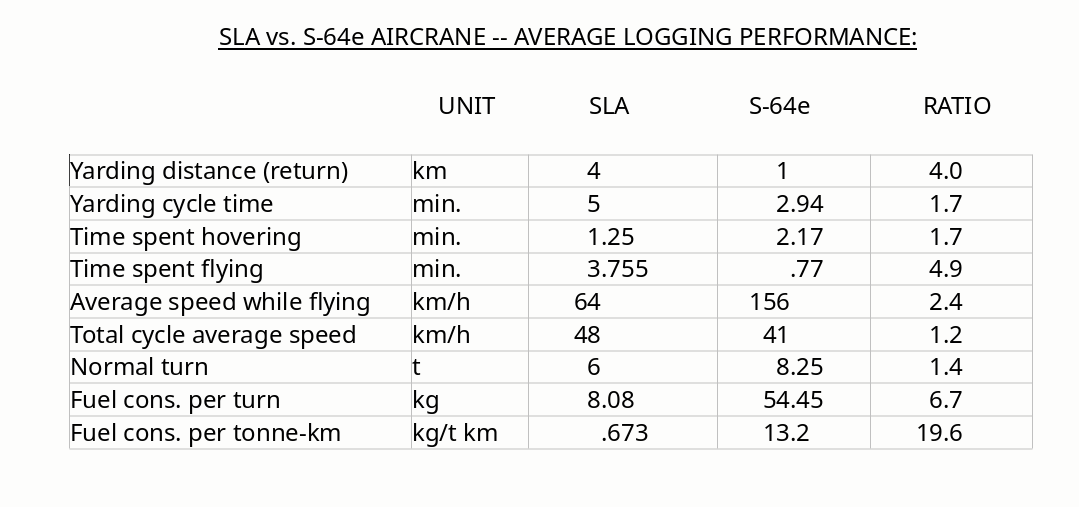
… now that’s what I call decimal alignment. Thanks my man.
Your tab configuration is incorrect: you align on a comma, which is not present in your text.
Fixing it is a bit tricky because you can’t update tabs (this is a known glitch in paragraph style). You must delete a tab stop and recreate it. When the correct character is set, your column displays as expected.
You can even improve your formatting and make maintenance easier: create a dedicated paragraph style for your columns. And remember to remove direct formatting because it has precedence over styles. With a paragraph style, changes are made in a single location (configuration dialog) and all occurrences are instantly updated.
First, it is a table so
- Best to set to Table Contents paragraph style for the entire table, then set Table Heading for the table heading rows.
- With the table selected press Ctrl+M to clear direct formatting
- Because we want to keep Table Contents for other table content, we need to create a style for decimal alignment. Right click Table Contents and select New
- In the dialogue General tab, give the new style a name, e.g. Table Decimal Alignment
- Select the Tabs tab. Under position type 2.00 cm (3/4") or as required, select Decimal and click New. OK
- Select all the cells that you want to decimal alignment applied to and double click your new style Table Decimal Alignment to apply it
For other tables in the document, you can just apply the relevant table paragraph styles and remove direct formatting
upload132120EA.odt (17.3 KB)
[Edit]
The caption for the table is Heading 3 paragraph style. It would be better to change the captions to Caption paragraph style (modify the style if needed) as you can then create a TOC for tables and it frees up Heading 3 style for its intended purpose… The Caption paragraph style has Keep with next paragraph set so it will stay with the table and not get separated across page breaks.
1 Like
I was just noticing that … gotta kill DF! When the thing is created by the converter, it’s full of tabs. Gotta kill them.
I can’t get used to the bleeding ruler. So faint. No menu option to kill tabs. Someone online said you’re supposed to drag them off the ruler? Anyway I’ve done it once, so I can do it again. Given that this doc was created with 100% direct formatting, I’ve got 150 pages almost 100% styles now … just the tables to go …
I used the ruler to demonstrate that it could be done; styles work best. I only use the ruler as visual check very occasionally
Jesus! Is that a comma in there? Can’t tell the difference. Anyway I changed it to a dot, now well see …
Man, if I could change one thing … let’s have an actually visible ruler please devs.