
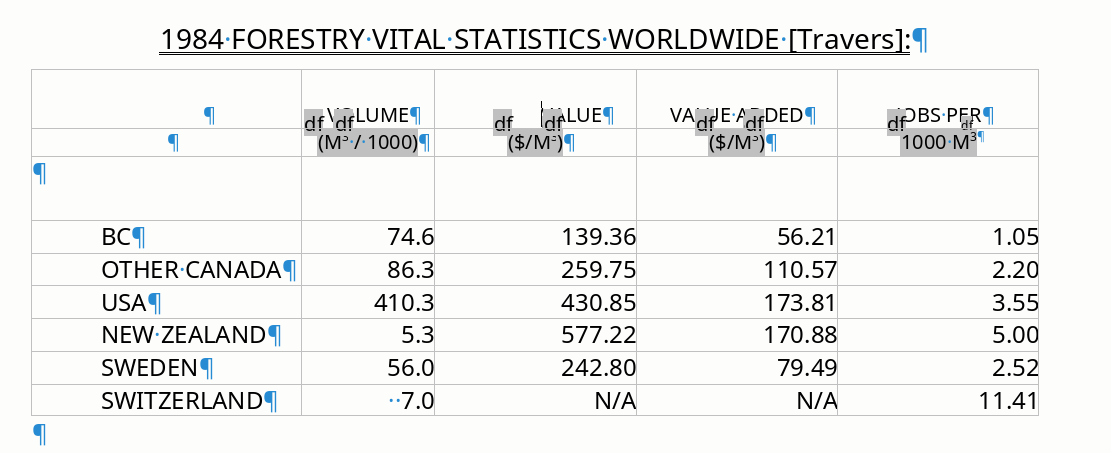
… my first effort a creating a proper table. Looks ok, but can I get decimal alignment and also get the numbers to center in the column? Back with WP I’d just pad with spaces to center things by eye, but LO won’t accept padding, it seems. And centering doesn’t look good.
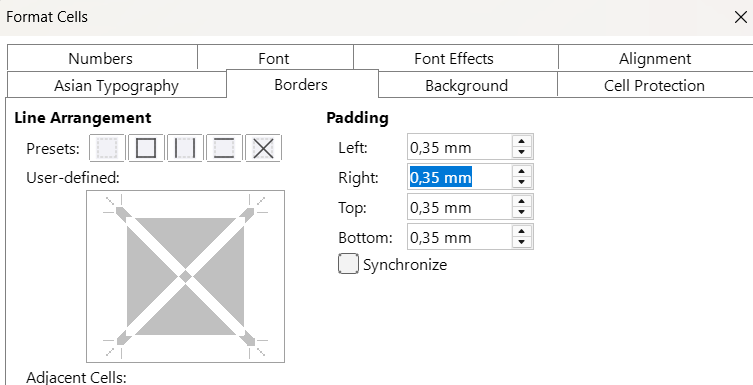
Frustrating, I looked everywhere I can think, but I can’t find ‘Format Cells’ 
I see the tag is Writer. You want to go to Table > Properties.
This link is to the Guide Chaper, Working with Tables in Writer.
So much information. But nothing on decimal alignment. Easy with the ruler but tables seems not to offer it.
Select all your data cells that you want the decimal separator lined up in.
Click Table > Number Format, select Number and choose the number of decimal places you want shown. The numbers with insufficient decimal places will be padded with zeroes.
Too convoluted. For now I’ll stick with direct formatting – what I see is what I get.
[Ctrl+1]
Preferably, create a style with the format and apply it to those cells.
It is better not to modify the Default style, but to create a new one. In the sidebar, right-click on a style, select New, modify the numerical format you want, set the right border, and in the first tab, give it a name that is recognisable to you.
Styles (Spreadsheet)
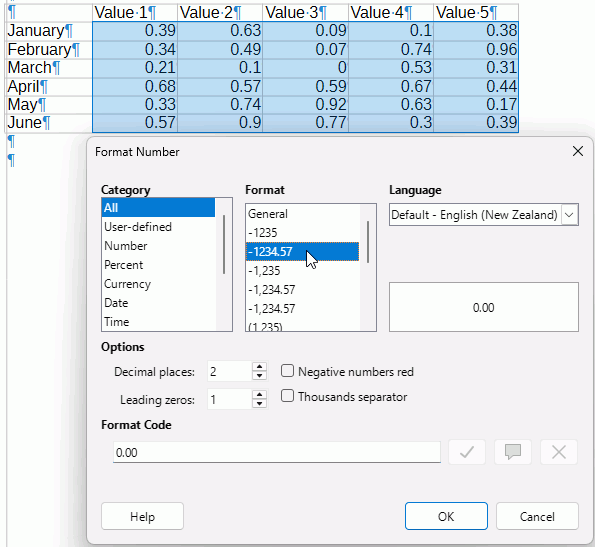
Yeah, the decimals should align. Pretty basic stuff. I note the tab ruler has it. No engineer or scientist would dream of looking at data without decimal alignment.
Engineers and scientists like the scientific data format. It is easier to align them.
1,23E+05
1,23E+01
Sometimes we do but often simple decimal alignment is preferred. Sheesh, the tab ruler offers it. This is a plain vanilla tab ruler table:
.
.
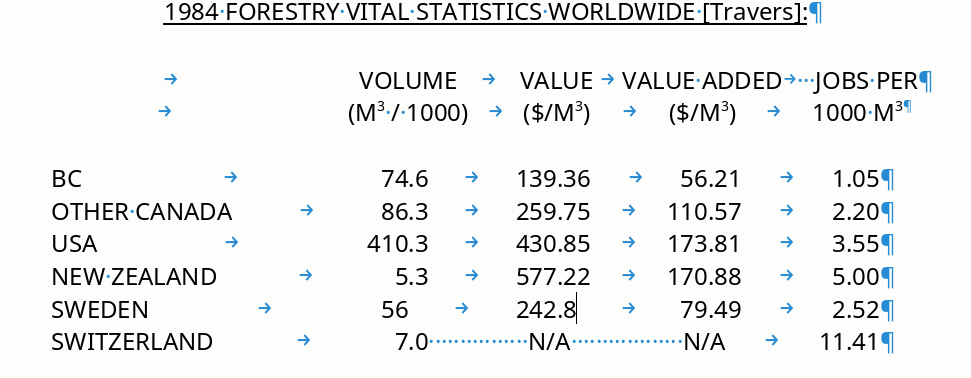
… I’d like to make it into a table if possible, OTOH using the tab ruler is perfectly satisfactory anyway so it’s not like I’m stuck or anything. BTW, I tried ‘right padding’ but the results were bizarre, the cells got taller and the numbers sorta wrapped inside the cell – couldn’t make any sense of it.
This is an interesting topic and I would also like to know how to do it correctly.
.
I found a helpful topic below:
.
.
The responder is the author of the book, To Tame a Writer, which is also available on the LibreOffice Books webpage.
.
They write on page 150:
.
I have had inconsistent results trying to implement this on a Writer Table, but I think I am close  Perhaps someone could explain the steps. Are the steps in the book still valid for versions 25.8 or 26?
.
Here is what I have tried:
.
-
Open Writer and create a 4x4 table.
-
Select the table, right click, and select Paragraph > Paragraph
-
Select the Alighnment tab and select Center.
-
Select the Tabs tab and select Type Decimal. This is where it gets fuzzy for me. The author says, it is not necessary to insert the tabulator.
I found that doc too! But it was over my head. If someone more experienced figures out how to do this, I’ll be happy to learn. I’d say it’s an omission – this should be added as a centering option ‘center on char’ or something, and you’d get to pick the char, which might not be a dot.
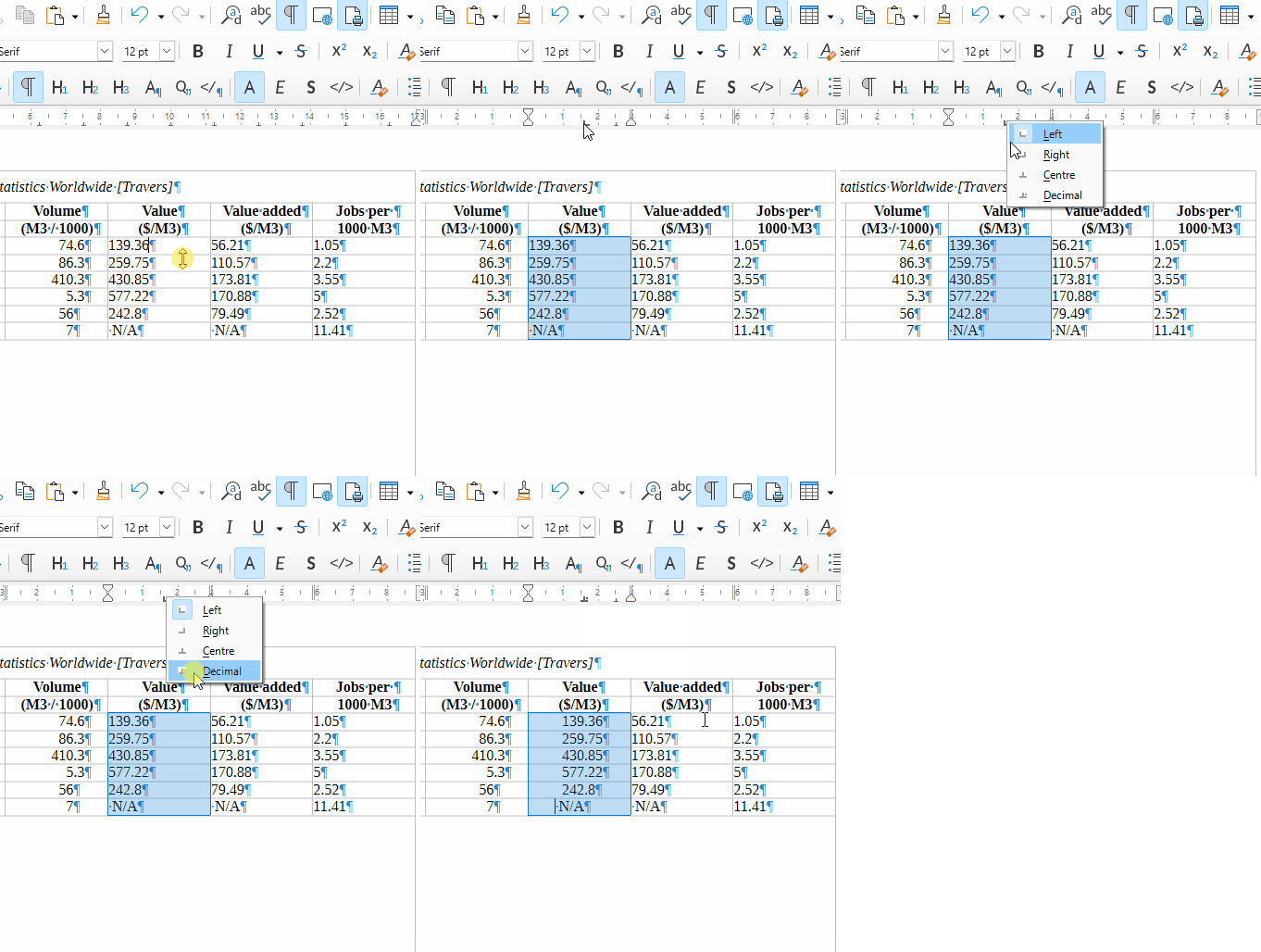
Select the cells in a column that need a decimal
Left click on the ruler to place tab stop
Right click to select Decimal
2 Likes
Ah! Use the ruler! Why didn’t somebody say that?
I was also able to get it to work by selecting the table (or desired columns), right clicking and selecting Paragraph > Paragraph. On the Tabs tab, select Type: Decimal and Position: .74" and New. All columns became positioned on the decimal.
.
I also tried it by creating a new Style from the Default Paragraph, added the tab, and then assigned the style to the table and it worked.
3 Likes
Got it by gum, but easiest with the ruler.
Grrrr … did one column but can’t do the second. Ruler is so faint, I can’t see what’s happening.
Make sure you have the second column selected.
That was my issue too.
.
At this time, using the dialog was easier. 
.
I noticed if I selected the entire table, right click > Paragragh > Paragraph, click the Tabs tab and then selected Type: Decimal, Position: .5, New. I only had to enter the Position once and it took care of all columns (cells). In fact, the New button was gray (disabled).
.
I could also select each required column individually and repeat the process.
.
In either case, each column (cell) had its’ own decimal tab marker on the Ruler and appeared when the cursor was on the column (cell) regardless of how it was originally set.
.
Whatever way you choose, be consistent with your selections and method.
.
For example, I noticed that if the decimal tab was first set by table or by column, and if for some reason a cell (some other range) was set later or the decimal tab was moved on the Ruler with a different selection, selecting the table or column now will look like no tab was set. Selecting the table or column again and resetting the decimal tab does fix it. But for awhile you might be scratch’n your head wondering why the decimal tab in the dialog is 0 when you know you set it
1 Like
upload.odt (16.0 KB)
Here’s my effort, I hope you can open it. I can get the first column fine, but not the second.
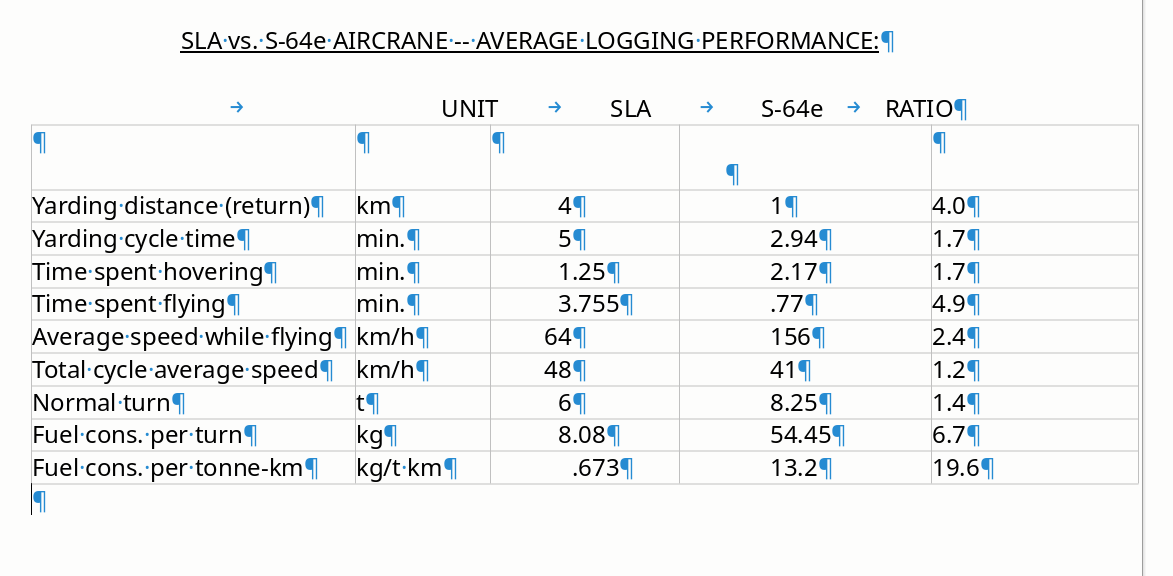
… first column of figures is just dandy. Others are set to ‘decimal’ via the dialogue but nothing changes.