Is it possible to have an overstrike of a term in a math formula that will show a diagonal arrow (from bottom left to top right) over some term? Preferably with the possibility of writing a number at the tip of the arrow.
Thanks

Is it possible to have an overstrike of a term in a math formula that will show a diagonal arrow (from bottom left to top right) over some term? Preferably with the possibility of writing a number at the tip of the arrow.
Thanks
From 24.2 You can use special characters
And you can refer to Apendix A of the Math guide for a command reference. Math Guide 25.2 - Appendix A, Command Reference
Try this:
10 `↗` lsup 12
10, grave_accent , arrow_simbol, grave_accent, lsup, 12
@bantoniof
How do you prevent U+2197 NORTH EAST ARROW from turning into an emoji? Adding U+FE0E VS15 is ineffective as already reported in a bug. And it slanted unless enclosed in double quotes.
Your example can be simplified as 10 "↗" ^12. Note the double quotes to prevent slanting the emoji.
Thank you bantoniof and ajlittoz for your quick responses.
I’m using:
Version: 25.2.7.2 (X86_64) / LibreOffice Community
Build ID: 5cbfd1ab6520636bb5f7b99185aa69bd7456825d
CPU threads: 4; OS: Windows 10 X86_64 (10.0 build 19045); UI render: Skia/Raster; VCL: win
Locale: en-US (en_US); UI: en-US
Calc: CL threaded
However, your examples do not do what I want: 10 ↗ lsup 12 and 10 “ ” ^12
” ^12
show as a 10 and to the right of the 10 the diagonal arrow.
What I want is the arrow to be over the 10, not to the right of the 10,
much like the overstrike command that writes a horizontal line over the expression that follows.
Daniel
En lunes, 5 de enero de 2026, 16:05:29 GMT+2, ajlittoz via Ask LibreOffice noreply@ask.libreoffice.org escribió:
ajlittoz
January 5
@bantoniof
How do you prevent U+2197 NORTH EAST ARROW from turning into an emoji? Adding U+FE0E VS15 is ineffective as already reported in a bug. And it slanted unless enclosed in double quotes.
Your example can be simplified as 10 "↗" ^12. Note the double quotes to prevent slanting the emoji.
Visit Topic or reply to this email to respond.
To unsubscribe from these emails, click here.
Like in the screenshot below?⠀
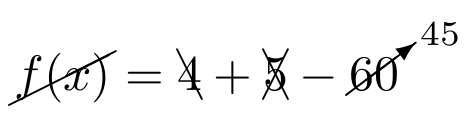
Thanks for the sample: this clarifies the question.
Overstriking formula elements is not possible directly in Math.
My workaround is to Insert>OLE Object>Formula Object in Draw and add all decorations here. Then I select the combined formula (group it as a precaution), copy and paste into Writer.
This ends up as a grouped drawing object. Unfortunately, drawing objects cannot be controlled by a frame style. Consequently, to avoid problems later, I highly recommend to change default anchor to As character. The group will then behave like a standard formula regarding text flow.
Example: Formula overstrike.odt (12.1 KB)
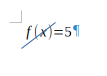
EDIT:
This is a quick and dirty imitation of your screenshot (no object grouping, no styling, and I didn’t suppress grid alignment which results in weird overstrikes):
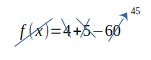
and the corresponding document: OverstrikenFormula.odg (11.5 KB)
PS: don’t use Suggest a solution for what are in fact comments or additional requests for explanation.
Hi cwolan,
The screenshot is exactly what I want, how do you get that in the Writer?
Thanks.
En martes, 6 de enero de 2026, 11:42:56 GMT+2, Daniel Volinski danielvolinski@yahoo.es escribió:
Hi Ajlittoz,
Could you please send me the Draw file you used to past into “Formula overstrike.odt”?
Thanks.
En martes, 6 de enero de 2026, 10:26:07 GMT+2, ajlittoz via Ask LibreOffice noreply@ask.libreoffice.org escribió:
ajlittoz
January 6
Thanks for the sample: this clarifies the question.
Overstriking formula elements is not possible directly in Math.
My workaround is to Insert>OLE Object>Formula Object in Draw and add all decorations here. Then I select the combined formula (group it as a precaution), copy and paste into Writer.
This ends up as a grouped drawing object. Unfortunately, drawing objects cannot be controlled by a frame style. Consequently, to avoid problems later, I highly recommend to change default anchor to As character. The group will then behave like a standard formula regarding text flow.
Example: Formula overstrike.odt (12.1 KB)
Visit Topic or reply to this email to respond.
To unsubscribe from these emails, click here.
That’s an image produced by the TexMaths extension. You will find the installation instruction is on the project homepage.
All you need is TexMaths, MiKTeX and the cancel package (manual).
Once you install MiKTeX, install the cancel package via MiKTeX console (installation via TexMaths is possible too).
In Writer, launch TexMaths Equations (1st icon on the toolbar), click on the Preamble button and in the TexMaths Preamble dialog add the command \usepackage{cancel}
Now insert the instruction \cancel{f(x)} = \bcancel{4}+\xcancel{5}-\cancelto{45}{60}
in the text field of the TexMaths Equations window and then click on the LaTeX button.
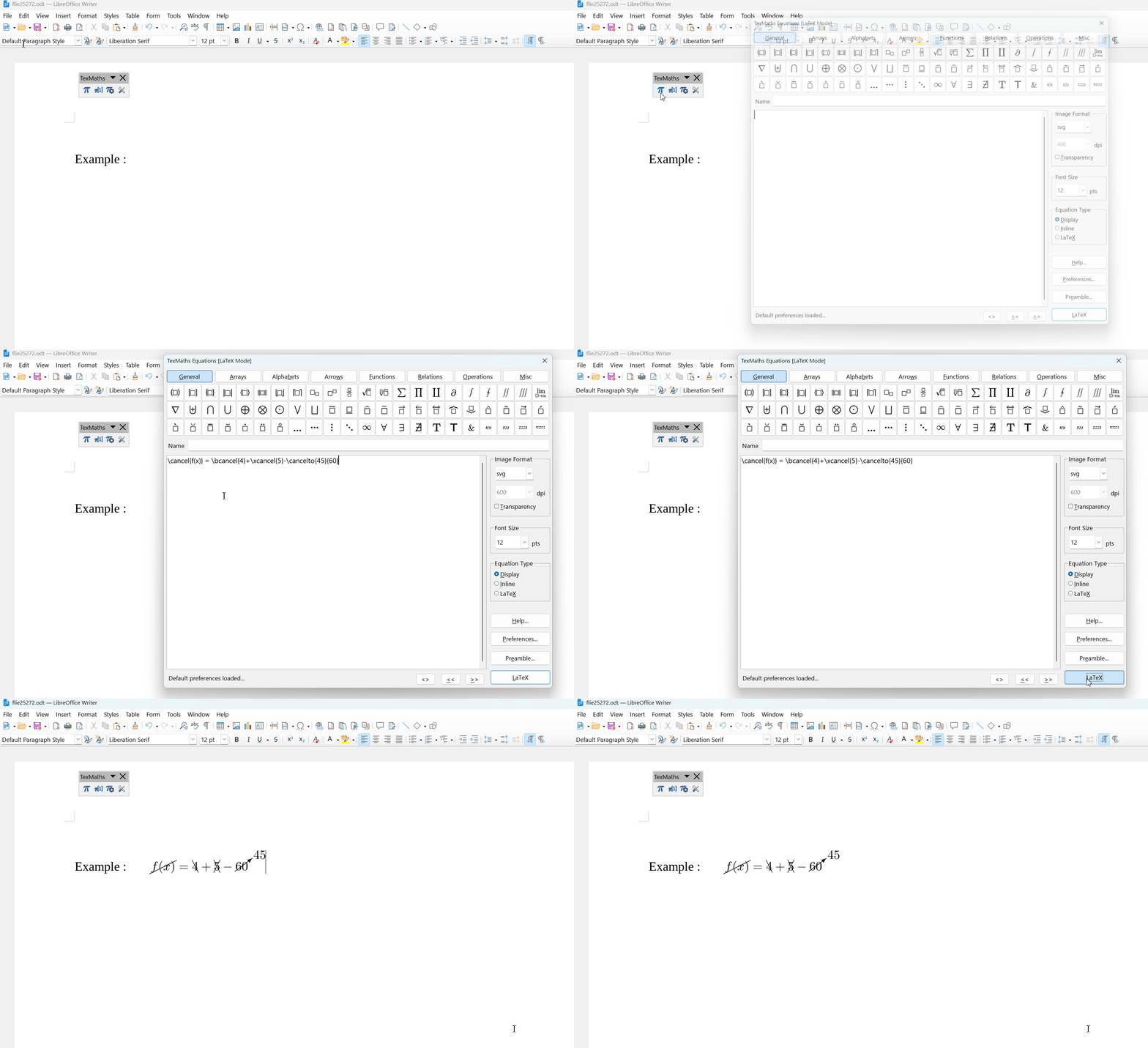
For this test I used LibreOffice 25.2.7.2 (X86_64) on Windows 11 with the latest TexMaths (0.52.4) and MikeTex 25.12.
Hi Ajlittoz,
Could you please send me the Draw file you used to past into “Formula overstrike.odt”?
Thanks.
En martes, 6 de enero de 2026, 10:26:07 GMT+2, ajlittoz via Ask LibreOffice noreply@ask.libreoffice.org escribió:
ajlittoz
January 6
Thanks for the sample: this clarifies the question.
Overstriking formula elements is not possible directly in Math.
My workaround is to Insert>OLE Object>Formula Object in Draw and add all decorations here. Then I select the combined formula (group it as a precaution), copy and paste into Writer.
This ends up as a grouped drawing object. Unfortunately, drawing objects cannot be controlled by a frame style. Consequently, to avoid problems later, I highly recommend to change default anchor to As character. The group will then behave like a standard formula regarding text flow.
Example: Formula overstrike.odt (12.1 KB)
Visit Topic or reply to this email to respond.
To unsubscribe from these emails, click here.
