
I appreciate what you are trying to do, but to be honest doesn’t help.
OK, that’s right. Let me try harder.
- The form based filter is buggy and difficult to use.
- There is an auto-filter which is very handy, however too simple.
- There is a third method to apply some filter without using macro code. It is a filter dialog similar to Calc’s standard filter. This method is very much hidden from the user and adding this feature to the form navigation toolbar or any other user interface element seems to be impossible. I can’t find it anywhere in Tools>Customize.
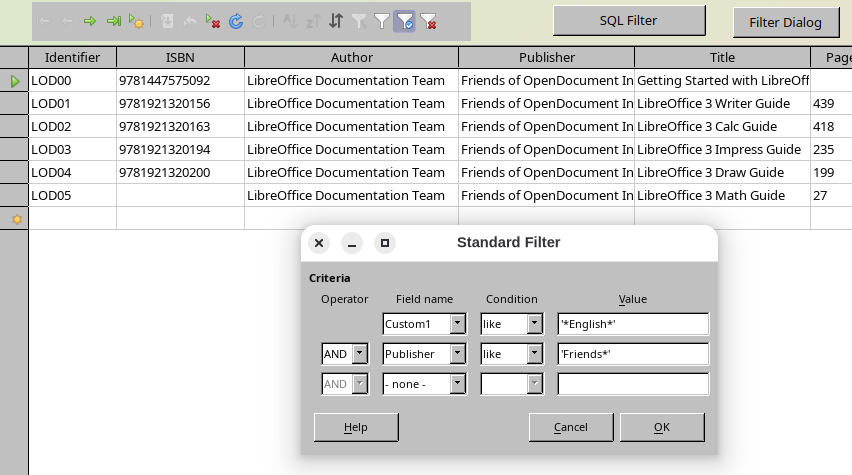
You can reach this feature in two ways:
- Draw a toolbar control, which is like a navigation toolbar firmly attached to the form canvas. It includes a standard filter button instead of the form based filter.
- On the regular form navigation toolbar, click the last button, which opens an additional grid view of your form with a toolbar having the standard filter.
The attached form document is linked to the “Bibliography” database we all share has a navigation control with a standard filter button and two buttons calling macro code.
- A push button able to call the built-in standard filter dialog.
- I refined my SQL filter approach with a dialog instead of a form. It includes some error handling, so invalid SQL expressions won’t invalidate the form. In edit mode, the form shows a hidden listbox having predefined filter strings loaded by the dialog.
Biblio_FilterString.odt (35.9 KB)
1 Like