Junicode:dlig how to get the discretionary ligatures working in localc

I’d like to have circled numbers. One way was explained in 2019 by @RGB-es here:

So I’ve installed junicode in my debian system. Now, junicode itself is showing up in localc as being available. But when the colum is formated to use junicode and my cell is contains [10], it isn’t displayed circled. It is displayed as a different font, but it is not displayed as a circled 10. I’ve tried that with the cell formatted as a number and as text.
How exactly? Did you use “Junicode:dlig as font name” as mentioned?

If you are not aware of this: You can actually type in the font-selector. Not only to jump to the right place in the list, but also to modify the name.
For certain features you need to switch them on by adding parameters to the name itself.

1 Like

Yes, via Format → Cells… → Font
.
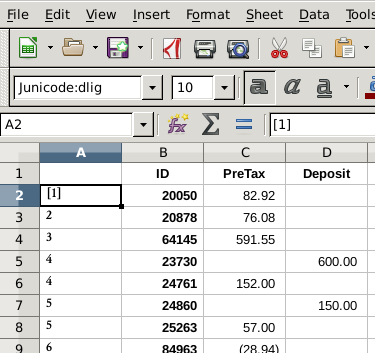
In the list of font families, it appears a ‘Junicode’. In the text field above the list, I appended “:dlig”.
.
With the column format category set as Number, I used the format code “[“0”]”
.
Whit the column format category is Text, I added the square brackets directly in the cell.
.
Otherwise, I do not know what @RGB-es meant when he wrote “setting the list to have the square brackets as separators before and after”
.
When the column category is Text, here is what it looks like:

xx

Maybe it is easier to just use Linux Biolinum font in a new style that you can apply

  1. In the sidebar, right click Default cell style and select New
  2. In the dialogue, in the General tab, give it a name, e.g. Circled
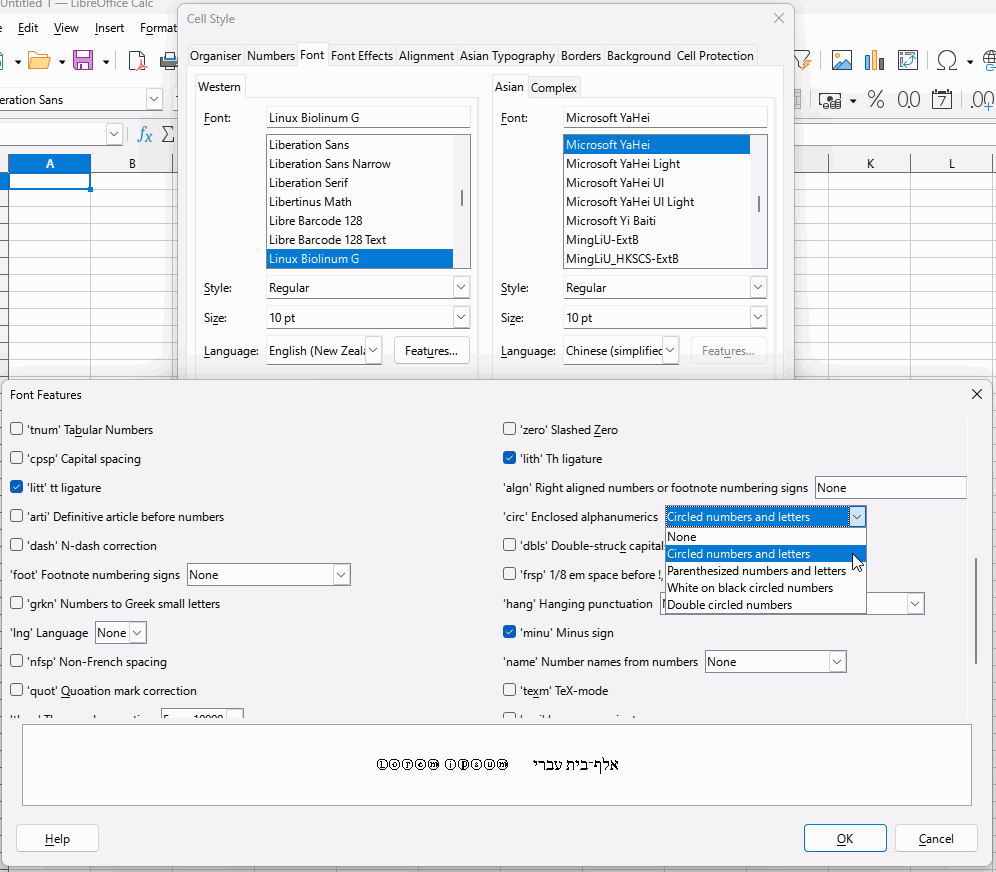
  3. Select the Font tab and select Linux Biolinum. Then click Features
  4. In the new dialogue, scroll down until, in the right hand column, you can see ‘circ’ Enclosed alphanumerics, choose your preferred option from the drop-down list but note that it circles both numbers and letters. OK out.
  5. Select the cells in which you want circled numbers and then double-click the new style Circled to apply

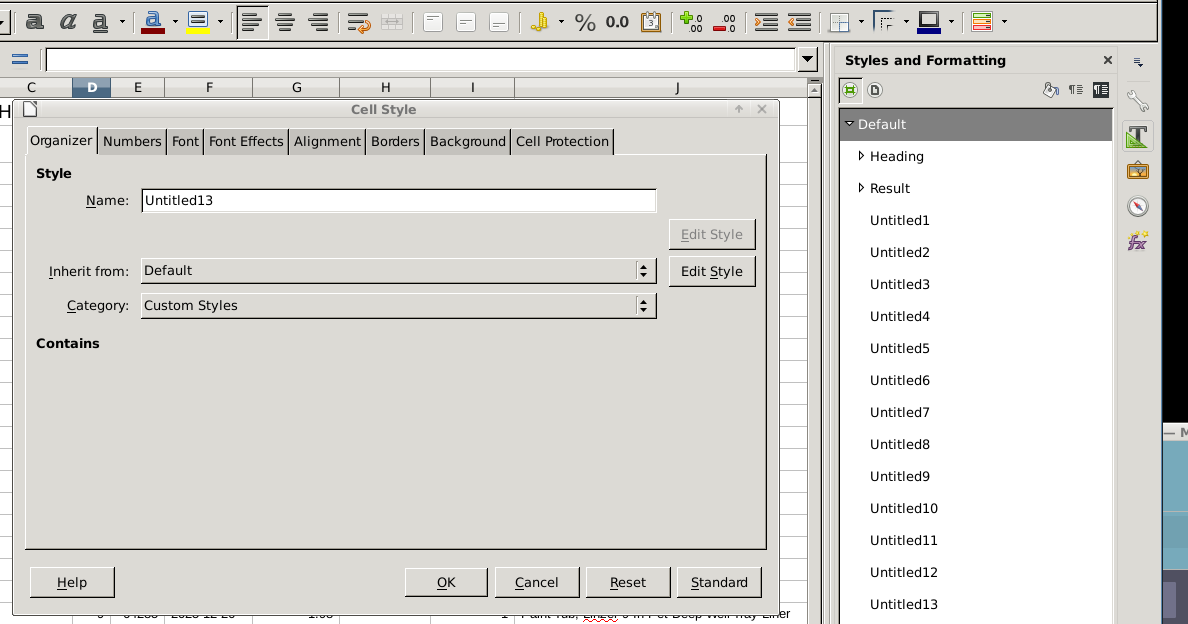
This is what I see after Sidebar > Default > right-click > new
.

In older versions the General tab is called Organiser, here is a screenshot form 7.6.7.2

I’ll look into installing a newer version of LO.
.
sudo apt install libreoffice is reporting I already have the newest version (1:5.2.7-1+deb9u11) for my version of debian.

The Features for that font still works in your version. Just remember that after creating the style, you need to apply it to the relevant cells; select them and then double-click the new style

I poked around quite a bit, but never found ‘Features’
.
At the moment I’m running an install of a debian backport of LO, version 6.1.5

6.1.5.2 is now installed, but still unable to find ‘Features’ anywhere.

However !!! BINGO !!!
.
Junicode:dlig is now working after unpgrading to the backport version 6.1.5.2
!!!
.
And as category > text, the numbers are circled for “[4]” … and as category > numbers, for format code “[“0”]”

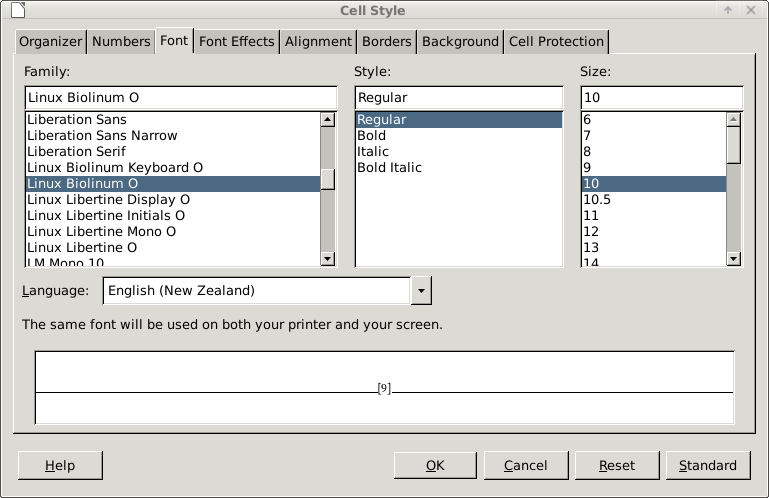
But isn’t it there, right next to English (New Zealand) in my screenshot.
Does this show circled numbers? If not then it is Ubuntu
CircledNumbersCalc.ods (8.7 KB)

fwiw, dlig is now working, see above
.
it’s hard to see which tab is being displayed in your screen shot. I presume the tab is Font. On my system the font tab is the same in both the previous version I had installed, and in the newly installed 6.1.5.2
.
Sorry, I don’t see anything remotely similar your screenshot.
.

I had to upgrade to version 6.1.5.2 in order to get dlig to work

I installed same Linux Biolinum G font that I used in Windows to create circled numbers, in Mint Linux (Ubuntu derived). Half the features of the font were not visible and my sample document no longer showed circled numbers. I guess the operating system does not support all the font features.

I upgraded my entire OS. It came with 25.2 as default. 25.2 has the ‘Feature’ button like your screen shot. may backport to get 26 rather than cut my teeth on 25.2 only to have to deal with whatever changes 26 brings. fwiw I really prefer the more compact UI that is in my screenshots above, and dislike the ‘new look’.

You might want to try changing the value of the environment variable SAL_USE_VCLPLUGIN to gen; you’ll find more information in this Wiki article.